
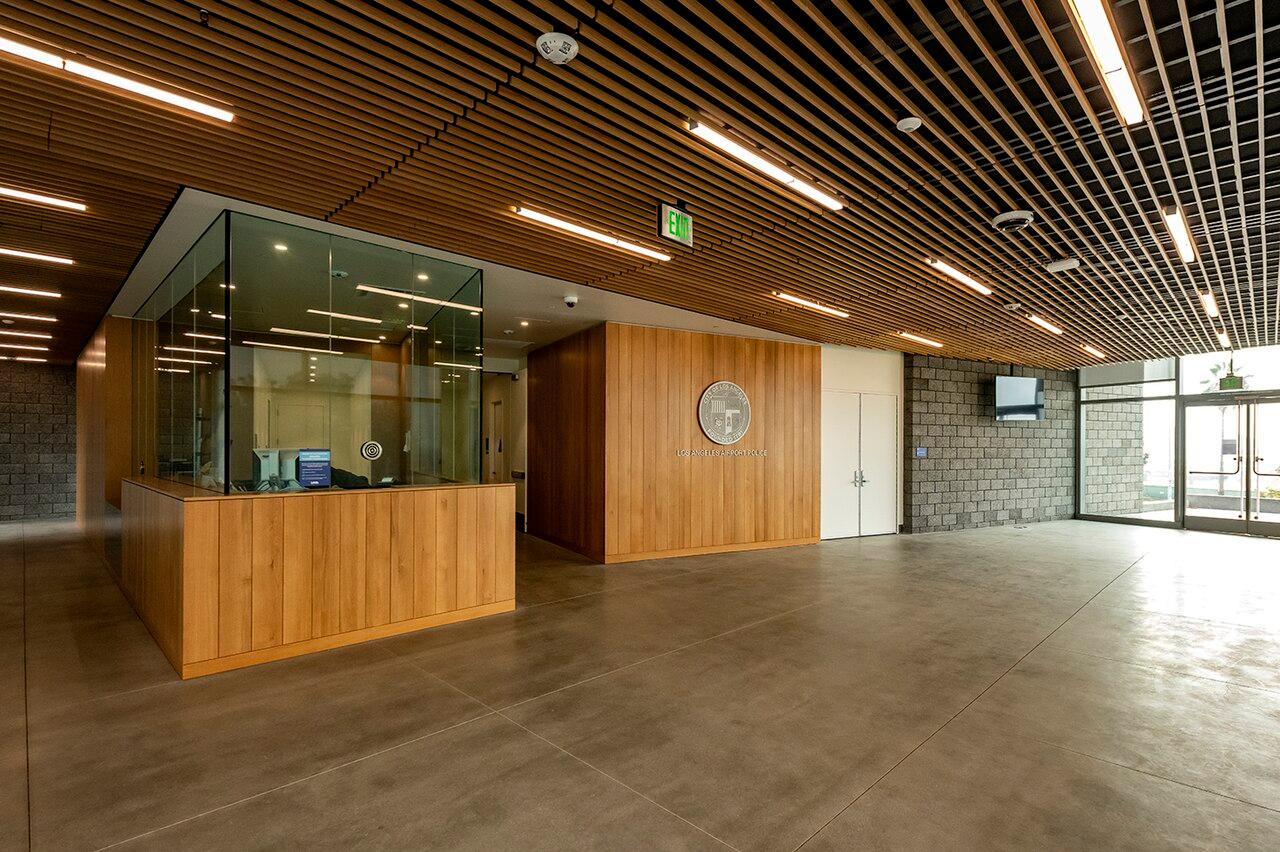
Office reception cameras: cover arrivals with restraint
Plan reception cameras around arrivals and package handoffs while limiting desk information, viewing permissions, and unnecessary recording.
Quick answer: Give reception cameras a defined job, such as documenting arrivals or package handoffs, and aim them to avoid unnecessary desk and visitor information. Separate live monitoring from recorded-video access. Test both the useful view and its privacy limits with the reception area arranged as staff actually use it.
A receptionist's desk can hold more private information than the entrance it faces. Visitor names, an open calendar, a delivery label, and a laptop screen may all sit inside an apparently ordinary lobby camera view. Increasing resolution can make those incidental details easier to read without making the arrival record more useful.
The first placement decision should therefore be what belongs outside the picture. Reception coverage can be valuable, but a camera aimed at everything in the room is an imprecise response to a specific business need. We would favor a clear arrival view over a broad view that spends most of its detail on the employee's working surface.
Choose an arrival question the footage should answer
Start with the event that would prompt a review. The office might need to establish when a visitor entered, whether a package was handed to reception, or what occurred during a reported disturbance near the public door. Those purposes should guide the angle and required detail.
Consider a hypothetical missing-delivery inquiry. The business may need to see a courier leave a package on the designated shelf and determine what happened next. That does not necessarily require reading the address label or recording the receptionist's computer. A view of the handoff and shelf can answer the question with less incidental information.
Avoid assigning the camera a vague employee-monitoring purpose simply because a desk is in range. If management wants a separate use, it should evaluate and approve that use explicitly with the people responsible for workplace and privacy policy. Do not let a convenient camera angle silently expand the original project.
The camera installation checklist can help distinguish an overview from a detail task. For reception, write the purpose in language a receptionist can understand and use it to judge the trial recording.
Walk the view from both sides of the desk
Look from the entrance toward reception, then from the receptionist's working position toward the entrance. Notice where people pause, where packages accumulate, and how the desk is used during busy periods. A camera drawing made before furniture arrives may miss all three.
Use ordinary activity to test the angle. An authorized participant can approach the desk while another handles a sample parcel. Review whether the person's arrival and the handoff are visible without requiring a special pose. Check whether a monitor, plant, or person waiting nearby blocks the actual task.
Then examine the unintended detail. Can a viewer read the visitor sign-in sheet? Does an open office behind reception expose workstations? Is the camera looking into a private meeting space whenever its door opens? These observations often suggest a better position or a modest change to desk arrangement.
A wide field of view is not automatically the more useful option. It can add irrelevant areas and reduce the detail available at the entrance. Try a narrower composition before assuming that additional cameras are the only way to improve the project.
Decide what masking can and cannot solve
A fixed region such as a workstation screen may be a candidate for static masking. Dynamic masking and export redaction address other problems. Axis's privacy white paper distinguishes these tools across capture, viewing, recording, and export. The controls should be selected for their actual purpose rather than grouped under one general privacy feature.
For example, an export tool that hides bystanders in a shared clip does not necessarily prevent an internal viewer from seeing the original recording. A mask over the desk may hide the package handoff the camera was meant to capture. A system that produces more than one stream may have different access arrangements for each. Ask what is recorded and what each authorized role can retrieve.
Where possible, solve an unnecessary view through placement before relying on a setting that somebody may later change. Then validate any remaining mask in live viewing, playback, snapshots, and the intended export process. Confirm the behavior of the exact camera and platform version; a general product-family claim is not enough.
- Identify fixed areas that should not appear in the routine view.
- Check whether excluding those areas still preserves the camera's approved task.
- Test the actual outputs used by staff and authorized reviewers.
- Repeat the check when furniture, camera aim, or software configuration changes.
Give reception staff only the viewing tools they need
A receptionist may need a live entrance view without needing to search months of recorded activity. An incident reviewer may need playback and export but no ability to change camera settings. A facilities administrator may manage equipment health while another role approves disclosure. The project should reflect those differences where the selected platform supports them.
Verkada's camera permissions documentation distinguishes live-only roles from recorded-video roles. It also explains how parent sites and group assignments affect effective permissions. That is a useful example of why a role's display name is not enough: the account's actual access must be tested.
Use a representative staff account to inspect the finished configuration. Can it see only the intended entrance cameras? Can it access other offices through a shared group or parent site? Does the lobby monitor expose images to visitors standing at the desk? The physical placement of the viewing screen deserves the same attention as the camera.
Avoid a shared administrator login left on the reception computer. Named accounts make it easier to change access when duties change and to understand who performed an action. The chosen sign-in process should fit the office's support and account policies so staff do not work around it during a busy morning.
Make an incident request easy to route
Reception staff often receive the first question about a delivery or visitor. They should know how to pass a request to the authorized reviewer without being expected to decide whether footage should be disclosed. A short internal process can capture the date, approximate time, location, and reason for the request.
Keep that request separate from a casual invitation to browse recordings. A visitor asking to see everyone who entered that afternoon presents a different issue from a staff member reporting a specific missing parcel. The organization's responsible team should decide what information can be used or shared and whether further review is needed.
Retention should account for the delay between an event and a legitimate inquiry, alongside the organization's privacy and records decisions. Do not select an unusually long period simply because storage is available. Likewise, an approved retention target is not useful if requests reach the reviewer after the relevant footage has already been overwritten.
Test the process with a harmless example. Give the reviewer an approximate time and a sample package description, then see whether the right sequence can be found. Preserve enough context to understand the handoff, and confirm the authorized export can be opened where it will be reviewed.
Keep the camera purpose intact as the office changes
Reception spaces are frequently rearranged. A new sign-in tablet, a taller counter display, or a moved package shelf can change both the useful evidence and the incidental information in view. Include a quick camera check when the front desk layout changes instead of waiting for an incident to expose the difference.
Staffing changes can also alter access requirements. A temporary receptionist may need a live view for a short period, while an employee moving to another role may no longer need any camera access. Tie those changes to the ordinary account process, and include shared links or viewing devices if the platform uses them.
For a company with several offices, standardize the purpose and review questions. The physical solution can vary with the lobby. A small suite with a single desk and a shared building lobby should not automatically inherit the layout of a large headquarters with a dedicated reception hall.
A useful periodic check is simple: ask whether an authorized reviewer can still reconstruct the approved sample event and whether the view now includes information it was intended to avoid. If either answer has changed, adjust the placement or configuration through the normal project process.
The takeaway
Reception cameras should explain a defined event without turning the front desk into a source of unnecessary information collection. Placement, masking, screen position, and account permissions each influence that result. A good-looking live view is only one part of acceptance.
Make the receptionist's real workspace part of the test and give staff a clear route for incident requests. For nationwide offices, repeat the purpose and privacy review at each layout rather than copying a camera position. The system should remain useful when the furniture and the people operating it change.
Plan a focused reception view
BlueHouse Telecom can help scope office security camera installation nationwide. Share the reception layout and the arrival or handoff events you need to review so the camera task can be defined clearly.
FAQ
Should a reception camera record the whole desk? Only include the working area needed for the approved purpose. Review whether visitor information, screens, or paperwork can be excluded while still capturing the arrival or handoff task.
Does privacy masking replace a workplace camera policy? No. A technical setting addresses part of the image or viewing process. The organization still needs appropriate decisions about purpose, access, retention, and disclosure for its actual locations.
Can a receptionist have live viewing without recorded-video access? Some platforms support that distinction. Confirm the exact role and effective permissions in the selected system, including inherited site or group access, and test with the staff account.
What should happen when the reception desk moves? Recheck the camera's useful view, unintended detail, masks, and viewing-screen placement. A previously accepted configuration may no longer match the changed workspace.