
Security Cameras / Interactive field guide
UniFi Protect Installation Guide for Business Locations
Plan a commercial UniFi Protect installation: camera coverage, recorder capacity, existing-camera migration, PoE, retention, and account handover.
What you’ll leave with
A UniFi Protect scope covering camera positions, recording capacity, migration, network readiness, and handover.
- Check recorder capacity as well as available switch ports.
- Pilot existing ONVIF cameras before promising full feature reuse.
- Validate retention against actual recording activity after installation.
A UniFi Protect installation should begin with a camera schedule and an operating plan. The recorder, disks, switches, cameras, and accounts all need to support the same requirements. Buying a familiar UniFi camera first can leave the project short of storage, network capacity, or a usable view at an important entrance.
This guide helps a business prepare a new installation or a migration at one or several locations. Use the six checkpoints to create a scope that an installer and your IT contact can review together. Model selection and final quantities should follow the site survey.
Put this guide to work
Build a UniFi Protect readiness brief
Identify what to confirm about recording, camera reuse, and the network before ordering a Protect installation.
0 of 3 decisions entered
Choose an answer to each question to generate your brief.
Keep your project brief
Complete choices above to create a brief. You can copy the guide link now.
Entries stay in this page’s memory. They are not saved to an account or sent in a quote request. Reset or reload clears the tool; downloaded or copied text remains wherever you keep it.
1. Give every camera a specific job
Create a row for each proposed view: entrance, register, loading bay, stock room, or parking area. Describe the event staff must understand from the footage and the distance to the subject. An overview of a room and a useful view of someone entering it may require separate positions.
Check the proposed scene when the business is occupied and after dark. Note backlighting, delivery vehicles, swinging doors, and shelving. Confirm the mounting surface and access method before selecting the camera body and accessories. Keep the location identifier consistent across the drawing, cable label, and Protect camera name.
2. Select the Protect host and storage together
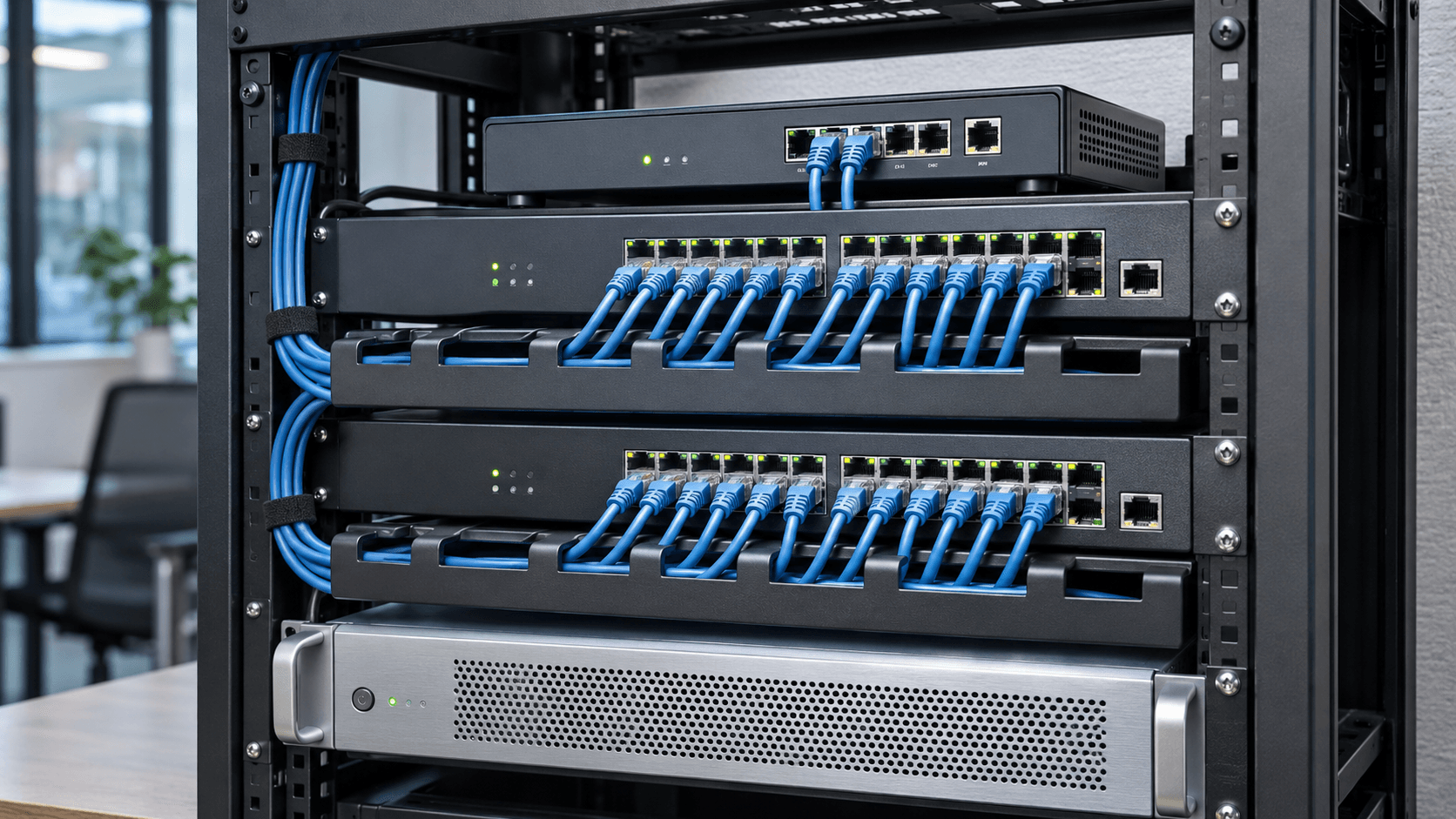
Protect requires compatible UniFi hardware to run the application and store recordings. Confirm that the selected host supports the proposed mix of cameras and resolutions, with room for planned growth. A spare switch port does not establish spare recording capacity.
Ask for the proposed disk models, usable recording capacity, retention assumptions, and response to a failed drive. Where redundancy is configured, distinguish usable storage from the sum of the drive labels. Include recorder ventilation, rack space, physical access, and backup power in the installation scope.
| Decision | Record in the proposal |
|---|---|
| Protect host | Exact model and capacity check for the camera mix. |
| Storage | Compatible disks, usable capacity, and any redundancy arrangement. |
| Growth | Expected additional cameras and the upgrade trigger. |
3. Test existing cameras before committing to reuse
Ubiquiti documents support for integrating selected third-party ONVIF cameras into Protect. That makes an inventory valuable: record model, firmware, current stream settings, and the functions your staff use. Compatibility is a question about that combination, not just a manufacturer's name.
Pilot one representative camera from each model group. Check recording, playback, motion events, audio where approved, and any required camera controls against the current integration documentation. Decide how old recordings will remain accessible during migration and who approves retiring the previous recorder.
References
4. Confirm cabling, PoE, and administration paths
List the camera's required power standard and maximum power requirement beside its assigned switch port. Check both individual port capability and the switch's total available budget. Outdoor cameras, infrared illumination, and moving cameras can produce a different power requirement from a small indoor unit.
Have IT approve addressing, permitted traffic, remote administration, and account ownership before installation day. Include the recorder and relevant network equipment in the outage plan. A working camera cable will not preserve recording if the recorder or an intermediate switch loses power.
5. Configure retention around the business need
Choose continuous or event recording deliberately for each view. Record the retention target and the image settings used to estimate storage. Protect provides storage and retention controls, but the available history still depends on the installed capacity and recording workload.
Validate event settings with ordinary activity, including slow entry, brief movement, and activity near the edge of the view. Review privacy zones and notification recipients. After the system has operated through representative busy and quiet periods, compare actual storage use with the original estimate and adjust the design where needed.
6. Finish with a practical handover
Ask an ordinary business user to locate an event and export a playable clip. Then confirm that the same account cannot change settings outside its role. Record who handles updates, disk replacement, new users, and incident exports so routine administration does not depend on a single person.
- Receive a camera plan, cable labels, equipment list, and business-owned account details.
- Verify daylight and nighttime views, recording schedules, time settings, and agreed permissions.
- Document support contacts, outstanding defects, and the date for a retention follow-up.
Common questions
Can existing cameras work with UniFi Protect?
Some ONVIF cameras can integrate. Check the exact model, firmware, and required functions against Ubiquiti's current guidance, then test a representative camera.
Does a spare switch port mean I can add a camera?
Check PoE power, recorder capacity, storage, and network load as well as the port.
Sources & accuracy notes
Source information reviewed . Confirm compatibility, availability, and commercial terms for the proposed equipment. Planning tools organize your assumptions; the site survey and agreed design establish the final scope.
- Ubiquiti: getting started with UniFi Protect
- Ubiquiti: third-party camera support
- Ubiquiti: storage and retention management
Have a correction or a project question? Contact BlueHouse Telecom.